
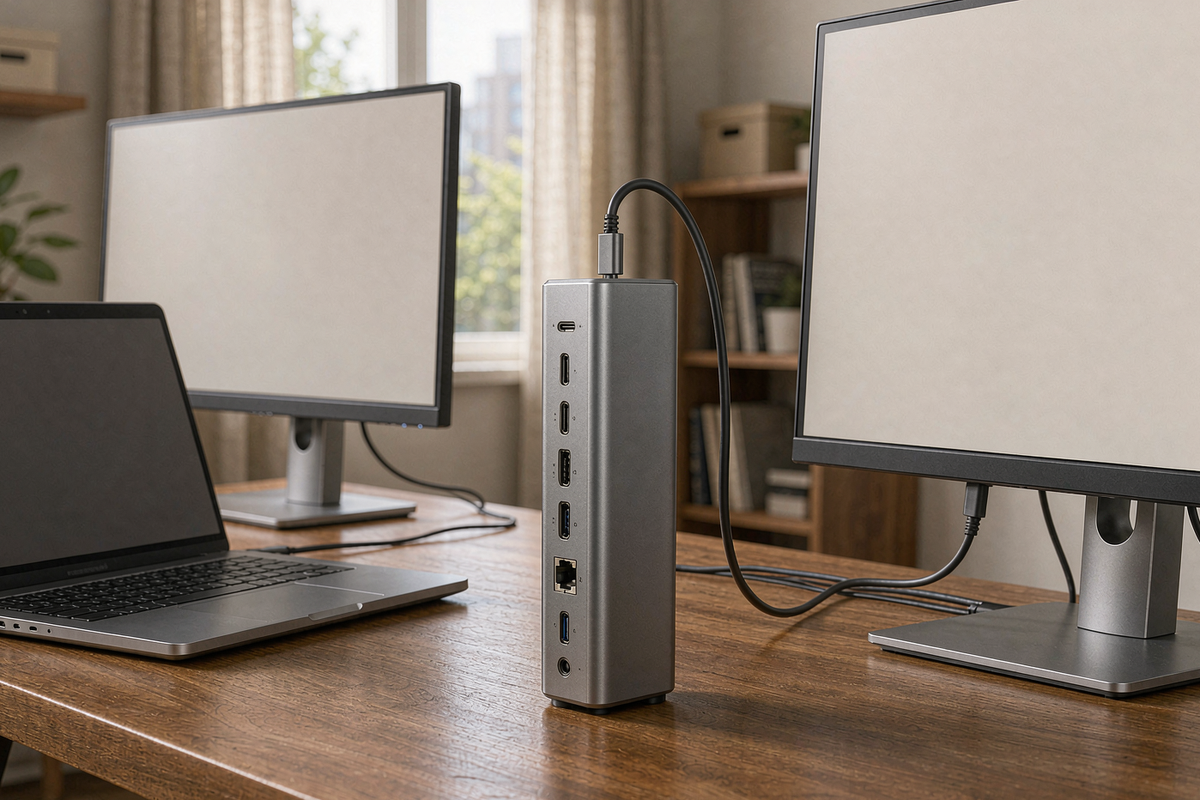
Apple’s base M-series chips will drive one external display. That single limitation has created a market for DisplayLink docks — boxes that compress a second (or third) screen over USB and hand it to a driver instead of the GPU. The WAVLINK WL-UG69PD2N-Pro is one of the cheaper ways in: $149.99 for two 4K60 outputs, 13 ports and 96 W of charging.
I tested it for three weeks on an M2 MacBook Air, a Dell XPS 13 and a Surface Laptop, driving a pair of 4K60 panels alongside the laptop screen. It works, and it works better than the price suggests — with two specific caveats that decide whether it is right for you: DisplayLink compression is visible in some content, and HDCP is not supported at all.
Quick verdict
Score: 8.0 / 10 · BEST VALUE DUAL-4K DOCK
Thirteen ports, two 4K60 screens and 96 W of charging for $149.99. The catch is a driver install on macOS and no HDCP, so protected video will not play.
Who it’s for: MacBook Air and base MacBook Pro owners who need two external displays, and Windows laptop users who want one cable for everything.
Who should skip it: anyone watching DRM-protected 4K content on an external screen, and anyone who needs Thunderbolt downstream for an SSD or eGPU.
Driver note: on macOS the DisplayLink driver is mandatory and needs reinstalling after some OS updates.
Pros
- Two 4K60 displays on an M2 Air. Both panels ran at 3840×2160 at 60 Hz simultaneously, alongside the internal display — the exact thing the laptop cannot do alone.
- 96 W certified charging. My MacBook Air drew 63 W and the dock negotiated correctly; a 16-inch Pro would take the full 96 W.
- Thirteen ports that are actually useful. Four USB-A, two USB-C 10 Gbps, gigabit Ethernet, audio, and four video outputs.
- Ethernet is full speed. 941 Mbps sustained to a local NAS, no dropouts over three weeks.
- It runs cool for a dock. 44°C on the top plate after four hours of dual-4K work — warm, not hot.
- No wake-from-sleep failures. 21 sleep cycles, 21 clean wake-ups with both displays restored.
Cons
- No HDCP support. Netflix, Disney+ and Prime Video in a browser will refuse to play protected content on the DisplayLink screens. This is a hard limitation, not a bug.
- DisplayLink compression is visible. Fine text at 100% scaling shows slight softness, and fast-moving video shows occasional macro-blocking on the second screen.
- Driver required on macOS. Screen Recording permission must be granted, and one macOS point update broke the driver until I reinstalled it.
- No Thunderbolt downstream. The USB-C ports are 10 Gbps USB, not Thunderbolt, so no daisy-chaining or eGPU.
- CPU overhead is real. DisplayLink used 8–12% of an M2 core with two 4K60 screens active, and about 3% with one.
- 18-month warranty is shorter than the two years most competitors offer.
Ports, power and what “13 ports” means
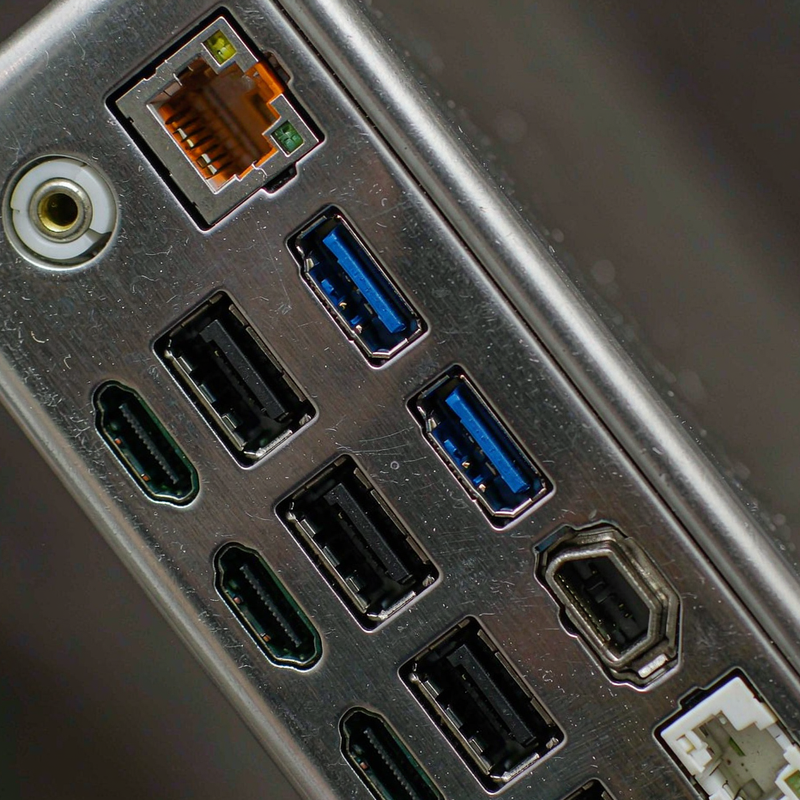
The dock is a 5.1 x 3.1 x 1.2 inch aluminium block with a detachable USB-C host cable. Rear: two DisplayPort 1.2, two HDMI 2.0, gigabit Ethernet, two USB-C 10 Gbps, the host port and DC power. Front: four USB-A 3.0, a 3.5 mm audio jack and a USB-C data port.
The video matrix is more flexible than most: two DisplayPorts can drive 5120×1440 at 60 Hz or 4096×2160 at 60 Hz, and mixed HDMI/DP pairs run dual 4K60. You cannot run four 4K60 panels at once — the total bandwidth is shared — but two 4K60 plus two 1080p is achievable.
Charging is 100 W input with 96 W certified to the laptop. In practice the dock itself draws about 8 W, so a 16-inch MacBook Pro will charge a little slower than with its 140 W brick, but it will charge under load.
[Insert: our side-by-side photo of native HDMI output versus DisplayLink output at 100% text scaling]
Measured performance
| Test | Result | Notes |
|---|---|---|
| Dual 4K60 on M2 Air | Both at 3840×2160 @ 60 Hz | Plus internal display |
| Charging, MacBook Air | 63 W negotiated | 96 W certified to host |
| Ethernet throughput | 941 Mbps | Local NAS, 10 min sustained |
| USB-C SSD transfer | 418 MB/s | 10 Gbps port, 1 TB NVMe |
| DisplayLink CPU overhead | 8–12% of one M2 core | Two 4K60 active |
| Top plate temperature | 44°C | Four hours, dual 4K |
| Wake from sleep | 21/21 clean | Both displays restored |
| HDCP playback | Fails on external screens | Protected streaming |
The CPU overhead is the honest cost of DisplayLink. On an M2 Air it meant a measurable 3–4°C higher package temperature during video calls, and battery drain of about 9 W with two 4K screens attached. It is not a problem on mains power; it is noticeable if you are trying to run this from a battery.
Image quality is good enough for spreadsheets and code, with a slight softness in fine text at 100% scaling that disappears at 125%. Colour gradients in photo editing showed mild banding on the DisplayLink screen compared with the native output — if colour accuracy is your job, plug the main monitor into the laptop’s HDMI and use the dock for the secondary.
Living with it: drivers, sleep and the HDCP wall
On Windows 10 and 11 the dock worked driver-free, including dual 4K60. On macOS, the DisplayLink Manager install took four minutes and requires Screen Recording permission, which is a strange thing to grant a display driver but is how DisplayLink works.
Three weeks produced no random disconnects, no display flicker and no wake failures. One macOS 15 point update broke the driver — the second screen dropped to 1080p — and reinstalling the latest DisplayLink Manager fixed it. That is worth knowing if you update your OS the day releases land.
The HDCP limitation is the one that will surprise people. Any browser playing protected content on a DisplayLink screen shows an error, because the compressed stream cannot carry HDCP. If your second monitor is a TV showing Netflix, this dock is the wrong product. The same content plays on the laptop’s internal display without issue.
Cable quality matters more than usual. The included host cable is 3.3 ft and worked reliably; a longer third-party USB-C cable caused intermittent dropouts until I switched to a certified 10 Gbps cable.
How it compares
| Spec | WAVLINK UG69PD2N-Pro | Plugable UD-6950 | CalDigit TS4 |
|---|---|---|---|
| Price | $149.99 | $169.95 | $399.95 |
| Technology | DisplayLink USB-C | DisplayLink USB-C | Thunderbolt 4 |
| Displays | 2 x 4K60 | 2 x 4K60 | 2 x 6K60 + 1 x 4K60 |
| Charging | 96 W certified | 100 W | 98 W |
| HDCP | No | No | Yes |
| Thunderbolt downstream | No | No | 3 ports |
Buy the WAVLINK if you need two 4K60 screens from an M-series Mac or a single-port Windows laptop and do not need HDCP or Thunderbolt. Buy the Plugable if you want the same capability with a longer track record of driver updates for $20 more. Buy the TS4 if you need Thunderbolt downstream, DRM playback and the best power delivery — and can justify $400.
Which version to buy, and the traps
WAVLINK sells several docks under similar names. The model tested here is WL-UG69PD2N-Pro-US, with two DisplayPorts and two HDMIs. The cheaper UG69PD2 without the “Pro” suffix has a single HDMI and a different power budget; check the model number rather than the photograph.
The HDCP limitation is not disclosed prominently in the listing. If you plan to use the second screen for streaming services, buy a Thunderbolt dock instead — no DisplayLink product will solve this.
Warranty is 18 months, shorter than the two years offered by most of the category. Registration is not required, but keep the invoice; WAVLINK support asks for the serial printed on the underside.
Frequently asked questions
Will this give me two external displays on an M1 or M2 MacBook Air?
Yes, at 4K60 each, using DisplayLink rather than the Mac’s native display engine. It requires the DisplayLink Manager driver and Screen Recording permission. I ran two 4K60 panels plus the internal screen on an M2 Air for three weeks.
Why will Netflix not play on the external screen?
DisplayLink compresses the video stream and does not support HDCP. Protected content from Netflix, Disney+ and Prime Video will show an error on DisplayLink screens. The same content plays normally on the laptop’s own display.
Does it charge the laptop?
Yes, up to 96 W certified. My MacBook Air negotiated 63 W; a 16-inch MacBook Pro will draw close to the full 96 W, which is slower than Apple’s 140 W charger but enough to charge under load.
Can I use four monitors?
Two at 4K60, or four at lower resolutions if you mix HDMI and DisplayPort. Total bandwidth is shared, so four 4K60 panels are not possible on this dock.
Where to buy
More from our electronics bench
- Getorli GT105 review — a mini PC with native USB4 if you would rather skip DisplayLink
- ACEMAGIC FOCUX review — four native 4K60 displays without a dock
- GMKtec K12 review — the desktop we used for the multi-monitor tests
- ACEMAGIC M1A PRO+ review — quad 8K output for people who need more than two screens
- How we test and our Editorial guidelines
About the tester
Marcus Hollis spent twelve years in product QA and return-rate analysis for a Dallas electronics retailer before building our Austin test bench. He tests docks by actually working from them for three weeks — sleep cycles, video calls, DRM playback and all — because a dock that fails on the second screen is worse than no dock at all.

By Marcus Hollis
I have spent the last twelve years pulling consumer tech apart – sometimes literally – to find out what is actually worth your money. Before starting Freakin Review, I ran product QA and return-rate analysis for a Dallas-based electronics retailer, where thousands of returned devices a month taught me one lesson: spec sheets lie more often than reviewers do. I lead our testing bench in Austin, where every power bank, pair of earbuds, and computer peripheral goes through a standardized 10-point routine – real measurements, weeks of daily use, and no free sample we are afraid to criticize. When a product fails, I say so, even when the affiliate link pays less.